
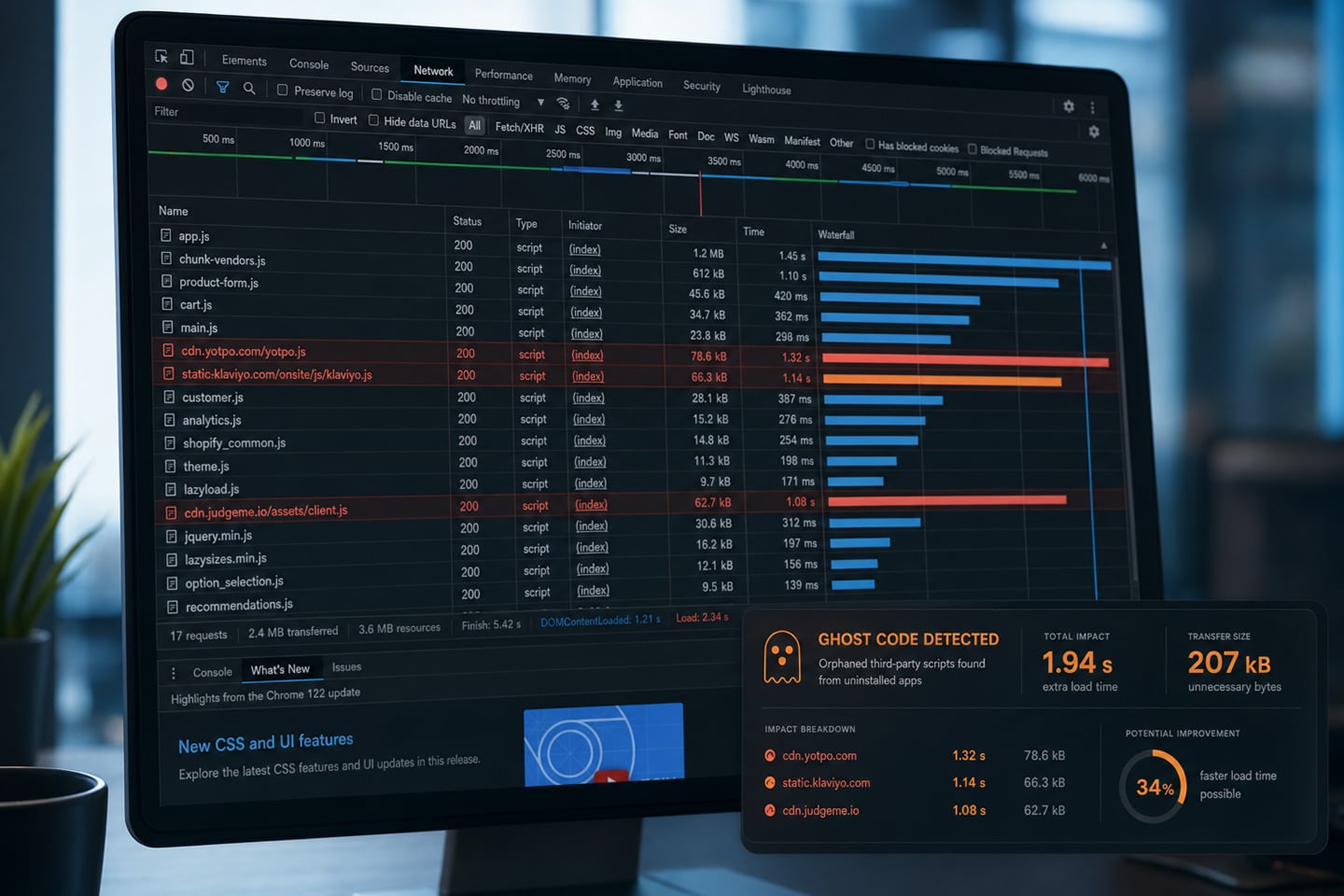

Your Shopify Plus store loads in 4.2 seconds on mobile. But hidden in that load time are orphaned scripts from apps you uninstalled months ago, still executing, still consuming resources, still costing conversions. This is ghost code: one of the most overlooked culprits in Shopify Plus performance optimization.
Google research found that in retail, a 1-second delay in mobile page load can impact conversions by up to 20%. For a Shopify Plus store generating $2 million annually, eliminating 2 seconds of ghost code bloat translates into substantial revenue recovery from existing traffic. This technical guide provides the systematic audit methodology for identifying ghost code, benchmark data showing typical performance improvements, and a safe removal protocol that preserves functionality.
The Hidden Performance Drain: Ghost Code
When you uninstall an app from your Shopify Plus store, Shopify removes the app’s functionality but doesn’t automatically clean up the code the app injected into your theme files. JavaScript files, CSS stylesheets, Liquid snippets, and tracking pixels remain embedded in your theme, executing on every page load while providing zero value.
This ghost code accumulation is particularly severe in Shopify Plus environments for three reasons:
Enterprise app ecosystems are complex. Plus merchants test more apps, integrate more third-party tools, and run more experiments than standard Shopify stores. Where a basic store might install 5-7 apps total, Plus stores commonly test 20-30 apps over their lifetime, settling on 10-15 long-term solutions. Each uninstalled app is a potential source of orphaned code.
Custom integrations leave deeper footprints. ERP systems, PIM platforms, OMS solutions, and custom B2B portals often inject diagnostic scripts, sync monitoring code, and verbose logging that should only exist in staging environments but remain active in production after migrations or platform changes.
Checkout customizations compound the problem. Shopify Plus checkout.liquid customization (deprecated August 2024) and checkout extensions created unique code accumulation patterns. Payment gateway A/B tests, fraud prevention tool trials, and address validation services from apps you tested but didn’t adopt continue loading on your highest-intent page.
Research analyzing 1,533 Shopify stores found that the median product page contains approximately 971 KB of unused JavaScript, with a range of 689 KB to 1,063 KB across industries. For Plus stores with more complex app ecosystems, this bloat is often significantly higher.
How to Audit Your Shopify Plus Performance
Effective Shopify Plus performance optimization requires systematic diagnosis. This three-phase audit identifies orphaned scripts, calculates their performance costs, and maps their locations within your theme architecture.
Phase 1: Lighthouse Performance Analysis
Tool: Chrome DevTools → Lighthouse tab
Objective: Quantify unused JavaScript and identify high-impact script bloat
Time requirement: 5 minutes
How to Execute:
- Open your store homepage in Chrome Incognito mode (eliminates browser extension interference)
- Right-click → “Inspect” → Navigate to “Lighthouse” tab
- Configuration: “Performance” only, “Mobile” device profile
- Execute: “Analyze page load”
Critical metrics to extract:
“Remove unused JavaScript” diagnostic typically reveals 600KB-1,000KB+ of orphaned code in stores that haven’t undergone recent cleanup. Key identifiers of orphaned code include:
- Vendor domain names from apps you’ve uninstalled (cdn.judgeme.io, static.klaviyo.com, cdn.yotpo.com)
- Duplicate library loads (jQuery 3.6.0 loading three times from different sources)
- Scripts from domains not currently in your app list
“Reduce JavaScript execution time” diagnostic shows parse/compile overhead. Common patterns include:
- Page builder remnants: 320KB-350KB+ (Shogun, PageFly legacy code)
- Review platform widgets: 150-280KB (Yotpo, Stamped.io after migration to Judge.me)
- Email capture tools: 250KB-280KB (Privy, Justuno when replaced by Klaviyo forms)
Performance Score Interpretation:
Lighthouse mobile scores range from 0-100. Google considers 90+ “good,” 50-89 “needs improvement,” and below 50 “poor.” The median Shopify store scores 44 on mobile, meaning achieving 70+ puts you ahead of most competitors, while 85+ is exceptional.
| Mobile Score | Performance Level | What This Means for Your Store |
|---|---|---|
| 90-100 | Excellent | Top-tier performance, minimal optimization needed |
| 70-89 | Good | Well above median (47), strong competitive advantage |
| 50-69 | Needs improvement | Above median, optimization still needed |
| <50 | Poor | Below median, likely has ghost code and performance issues |
Phase 2: Network Waterfall Analysis
Tool: Chrome DevTools → Network tab
Objective: Map every script request to its source and identify orphaned vendor domains
Time requirement: 10 minutes
How to Execute:
- With DevTools open, navigate to the “Network” tab
- Click the filter icon and select “JS” to show only JavaScript files
- Perform a hard reload: Cmd+Shift+R (Mac) or Ctrl+Shift+R (Windows)
- Once the page finishes loading, click the “Size” column header to sort by file size (largest first)
- Right-click the column headers and enable “Initiator” if not already visible
Analysis framework:
Identify orphaned vendor scripts by looking for domains that match apps you’ve uninstalled:
- cdn.shopify.com/s/files/1/[store-id]/files/old-app-name.js – App-uploaded scripts that persist after uninstall
- static.klaviyo.com/onsite/js/klaviyo.js – When you’ve switched to a different email platform
- productreviews.shopifycdn.com – When migrating from Shopify Product Reviews to third-party
- cdn.yotpo.com/yotpo-widget.js – Common remnant after switching review platforms
Parse the “Initiator” column to determine where ghost code originates:
| Initiator Value | Source Location | Removal Method |
|---|---|---|
| theme.liquid:142 | Hardcoded in global layout | Edit theme.liquid, remove script tag |
| product.liquid:67 | Product template only | Edit product template file |
| Shopify App: [App Name] | App Embed (may be disabled but still loading) | Theme Customizer → App Embeds → Disable |
| gtm.js?id=GTM-XXXXX | Google Tag Manager | Edit GTM container, remove tag |
| another-vendor-script.js:12 | Third-party script loading additional scripts | Address upstream dependency |
Prioritize by impact: Focus on scripts over 100KB first. Google Analytics alone adds 135KB, and when combined with Google Tag Manager (30-50KB) and cookie consent banners like OneTrust (121KB), the total can exceed 285KB. Even when you’ve switched platforms, these scripts often remain if not manually removed.
Phase 3: Liquid Rendering Performance
Tool: Shopify Theme Inspector for Chrome
Objective: Profile Liquid code execution and identify slow app-rendered snippets
Time requirement: 5 minutes per page type
How to Execute:
- Install the Shopify Theme Inspector extension from Chrome Web Store (free, official Shopify tool)
- Navigate to your store and open Chrome DevTools (F12 or right-click → Inspect)
- Click the “Shopify” tab in DevTools
- Click “Start profiling” button
- Reload the page to capture rendering data
- Once the page loads, click “Stop profiling”
- Review the flame graph visualization
Flame graph analysis:
The flame graph shows render time for each Liquid snippet and section. Look for snippet render time thresholds:
- <100ms: Normal, acceptable performance
- 100-200ms: Investigate if snippet serves critical function
- 200ms+: Performance bottleneck requiring optimization or removal
Also look for ghost code signatures in Liquid (common patterns indicating orphaned code):
| {% render ‘yotpo-widget’ %} <!– When you’ve switched to judge.me –-> {% include ‘klaviyo-popup’ %} <!– When using different email tool –-> {% render ‘shogun-page-builder’ %} <!– After migrating to native sections –-> |
Additionally, check for global layout bottlenecks. If theme.liquid shows excessive render time (>300ms), likely causes include:
- Multiple global app snippets from deleted apps
- Redundant analytics/tracking code
- Unused metafield queries for removed app functionality
Critical action thresholds:
- Individual snippet >200ms = investigate and potentially remove
- Total Liquid rendering >800ms = multiple optimization opportunities exist
- App snippets from deleted vendors >50ms = pure performance waste with zero functional value
Safe Removal Protocol
Identifying ghost code is straightforward, but removing it without disrupting functionality requires a methodical approach.
Pre-Removal Protocol
Essential safeguards before modifying any code:
- Duplicate your live theme (Online Store → Themes → Actions → Duplicate)
- Execute all changes in the duplicate for isolated testing
- Document modifications in a spreadsheet tracking file name, line numbers, removed code, date, and rationale
- Maintain version history and comment out code before deletion (enables rapid rollback if needed)
Removal Methodology by Code Location
For Liquid render tags in theme files:
Located using theme code editor search (Online Store → Themes → Actions → Edit Code):
Step 1: Comment, don’t delete
| {% comment %} {% render ‘yotpo-reviews-widget’ %} Commented: 2026-04-30 Reason: Yotpo uninstalled 2026-03-15, migrated to Judge.me Safe to delete after 7-day monitoring period {% endcomment %} |
Step 2: Test critical page types
- Homepage (hero, featured collections, global scripts)
- Collection pages (filtering, sorting, product grid rendering)
- Product pages (variant selection, add-to-cart, reviews display)
- Cart and checkout (quantity updates, checkout button functionality)
Step 3: Monitor console errors
- Open DevTools → Console tab while testing. Watch for:
- Uncaught ReferenceError (broken JavaScript dependencies)
- 404 Not Found (missing assets)
- Failed network requests (broken API calls)
Step 4: Production deployment
- Wait 24-48 hours with commented code in staging
- If stable with no reported issues, permanently delete
- Publish cleaned theme to production during low-traffic period
For JavaScript in layout files:
| <!– Removed: 2026-04-30 – Klaviyo Forms uninstalled, now using native Shopify forms <script src=”https://static.klaviyo.com/onsite/js/klaviyo.js?company_id=ABC123″></script>–> |
For App Embeds (disabled apps still loading resources):
- Online Store → Themes → Customize
- Left sidebar → “App embeds” section
- Toggle OFF (not just minimize) any app that’s been uninstalled
- Note: Some apps remain in this list after uninstallation, but stop functioning when toggled off
- Save and verify in Network Waterfall that scripts no longer load
For Google Tag Manager remnants:
- Access GTM container → Tags section
- Identify tags for uninstalled apps (search by vendor domain)
- Pause tag → test for 7 days → delete if no issues
- Common GTM ghost code: old A/B testing tools, deleted analytics pixels, conversion tracking for discontinued campaigns
Verification Protocol
Post-removal validation checklist:
| Validation Type | Method | Success Criteria |
|---|---|---|
| Lighthouse re-audit | Run new performance scan | Measurable score improvements |
| Network Waterfall check | Verify deleted domains no longer load | 0 requests to orphaned vendor domains |
| Theme Inspector re-profile | Compare new render times | Faster snippet rendering |
| Functional testing | Complete test purchase | All functionality intact |
| Console monitoring | Check for JavaScript errors | No new errors introduced |
Case Study: Shopify Plus Performance Optimization for an Enterprise Sporting Goods Retailer
Atwix’s comprehensive performance optimization for a global sporting goods brand addressed ghost code, infrastructure inefficiencies, and frontend bloat across their ecommerce platform.
The transformation combined systematic ghost-code removal with database optimization, caching configuration, and frontend asset management, demonstrating that addressing orphaned scripts is a critical component of holistic Shopify Plus performance optimization.
Measurable results:
- Lighthouse score: 10 → 90+ (elite performance tier)
- Load time improvement: 80% faster across all page types
- Zero downtime or functional disruption during optimization
B2B Performance Imperative
B2B Shopify Plus stores experience amplified ghost code impact:
Extended research cycles multiply exposure. B2B buyers conduct more thorough product research across multiple sessions, viewing significantly more pages than B2C customers. Performance friction compounds across every interaction, which is critical when procurement managers browse hundreds of SKUs monthly before making purchasing decisions.
Higher order values amplify conversion impact. B2B average order values typically range from thousands to tens of thousands of dollars, while B2C transactions average under $150. Each percentage point of conversion improvement represents substantially more revenue in B2B contexts.
Frequent purchasing compounds friction. Research from Digital Commerce 360 found that over 50% of B2B buyers make purchases daily, with 32% purchasing multiple times per day. Slow experiences become associated with your brand, increasing the likelihood of switching to competitors with better UX.
Frequently Asked Questions
Can I remove ghost code myself, or do I need a developer?
Technical comfort determines the appropriate approach. If you’re familiar with Shopify theme code, HTML, and basic JavaScript, you can safely remove ghost code by following the audit methodology outlined in this guide: use Lighthouse to identify orphaned scripts, search your theme code for references, comment out code (never delete immediately), test thoroughly in a duplicated theme, monitor for issues, then remove permanently. However, if you’re not comfortable editing theme code or distinguishing between active and orphaned scripts, professional assistance is recommended. Incorrectly removing active code can break checkout, product pages, or other critical functionality.
How often should I audit for ghost code?
Implement quarterly performance audits to prevent ghost code accumulation: Q1 (January) for post-holiday cleanup, Q2 (April) for pre-summer optimization, Q3 (July) for mid-year maintenance, and Q4 (October) for pre-peak-season performance prep before Black Friday/Cyber Monday. Additionally, conduct an audit immediately after uninstalling any app, and verify within 24 hours that the app’s scripts no longer load. Stores that frequently test new apps (4+ installations/uninstallations per quarter) should consider monthly lightweight audits focusing on newly introduced ghost code before it compounds with existing technical debt.
Will removing ghost code break my store?
Removing ghost code won’t break your store if you follow proper protocol: always work in a duplicate theme, never edit the live theme directly. Comment out code before deleting it permanently; this allows for an instant rollback if issues arise. Test all critical page types (homepage, collection, product, cart, checkout) after each change. Monitor browser console for JavaScript errors. Wait 24-48 hours before permanently deleting commented code to ensure no issues arise later. The key distinction: ghost code, by definition, comes from apps you’ve already uninstalled, so it doesn’t provide any active functionality. The risk is of accidentally removing active code because of misidentification.
I just uninstalled an app yesterday. Should I check for ghost code now?
Yes. Within 24 hours of uninstalling any app, open Chrome DevTools Network tab, filter by JavaScript, and verify the app’s vendor domain no longer loads. Most quality apps clean up automatically, but many don’t. Search your theme code (Online Store → Themes → Actions → Edit Code → search for the app vendor name) to find residual Liquid snippets. Check Google Tag Manager for orphaned tags. Check Theme Customizer → App embeds to ensure the app’s embed is toggled off. This immediate post-uninstall verification prevents ghost code accumulation before it becomes a larger cleanup project.
What other Shopify Plus performance issues should I address beyond ghost code?
Comprehensive Shopify Plus performance optimization addresses multiple factors beyond ghost code: unoptimized images (serving full-resolution files instead of responsive images), render-blocking resources (CSS and JavaScript preventing above-the-fold content from displaying), excessive third-party scripts (live chat widgets, social media feeds, recommendation engines loading synchronously), inefficient Liquid code (nested loops, redundant API calls, unoptimized metafield queries), and server response time issues (TTFB optimization). Ghost code removal is foundational because it eliminates performance waste with zero functional trade-offs, but the biggest gains come from systematic optimization across all these vectors. Professional audits prioritize improvements based on the impact-to-effort ratio.
Ghost Code Is Addressable Technical Debt
Ghost code accumulation is predictable: apps installed, tested, replaced, and uninstalled, each potentially leaving orphaned scripts. But systematic Shopify Plus performance optimization using Lighthouse, Network Waterfall, and Theme Inspector makes identification straightforward, and the safe removal protocol outlined here ensures cleanup without breaking functionality.
Professional Shopify Plus Performance Audit
Atwix’s Shopify Plus specialists conduct comprehensive technical audits that identify ghost code, quantify its performance impact, and implement safe removal protocols as part of holistic Shopify Plus performance optimization.