


In most Magento templates, we can see the language selector provided as a simple pull down menu. Let’s explore a way to enhance the look and make a more attractive, custom style.
In the example below, I’ll tell you how to make a multilingual store and replace the standard language selector with flag icons.
Step 1:
First of all, you should create a few store views. Each view will represent a separate language. Go to Admin->System->Manage Stores. Here you can the additional store views. Click the ‘Create Store View’ button. In the next window, you should set 4 required settings. In the Store field, select your store. Then, fill the Name field with the language name, such as ‘German’. The Code field is the view id which we will use in our selector logic. Fill it with the value ‘german’ for this example. The Status field should be set to ‘Enabled’. Optionally, you also can fill the Sort Order field. Click the Save Store View button. Now we have one additional store view. Try to add another view with the code ‘danish’ or any other language using the same process.
Step 2:
Now, go to the Admin->System->Configuration. At the top left part of the page you will see the store selector:
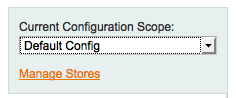
In this menu, you will find your store views. Choose one of them, such as ‘German’. Then, click on the ‘General’ tab. On the general setting page, expand the ‘Locale Options’ section. The first option of this section is ‘Locale’. Remove the checkbox ‘Use Website’ to make it active and choose German (Germany) from the list. Now click ‘Save Config’ at the top of page. Choose locale for other store views the same way.
Step 3:
The next thing we need to do is find the country flags needed. You can download flags pictures from any resource you like, such as Wikipedia or Google images). It is necessary for all of the flags pictures to be the same size and format and have the same extension (*.jpg, *.png, *.gif or other). You will need to rename those pictures to something that makes sense. Image’s names must match the store view codes you entered earlier when creating the store views, such as german.jpg, danish.jpg, etc. After you have downloaded and renamed everything, you need to put the images into the skin folder for your template. For example, my template is called ‘atwix’, so I should go to the /skin/frontend/default/atwix/images directory and create a new directory there called ‘flags’ and put all of the files there. So, the flags dir will be [store path]/skin/frontend/default/atwix/images/flags/.
Step 4:
For this step, we need to edit the language selector code. Go to [store path]/app/design/frontend/default/[your template]/template/page/switch/. There you will find the file ‘languages.phtml’. If there is no such file, you should copy it here from [store path]/app/design/frontend/base/default/template/page/switch/. Open this file from the new location with your favorite editor and add the following code:
<?php if(count($this->getStores())>1): ?>
<div class="form-language">
    <div class="langs-wrapper">
    <?php foreach ($this->getStores() as $_lang): ?>
        <?php if ($_lang->getCode() != 'default'): ?>
        <a class="lang-flag" href="<?php echo $this->getCurrentUrl() . '?___store=' . $_lang->getCode();?>"><img src="<?php echo $this->getSkinUrl('images/flags/' . $_lang->getCode() . '.png');?>" alt=" "></a>
        <?php endif;?>
    <?php endforeach;?>
    </div>
</div>
<?php endif;?>
After this, replace ‘.png’ with the extension of your images, if necessary.
The last step is to make the flags appear as you would like them to. Open the file [store path]/skin/frontend/default/[your tnemplate]/css/styles.css and edit styles for the flags block depending on your Magento store design. In my example, styles look something like this.
.langs-wrapper {
    height: 15px;
}

.lang-flag {
    width: 22px;
    height: 13px;
    float: right;
    margin-left: 10px;
    border: 1px solid transparent;
}

.lang-flag:hover {
    border: 1px solid #FFF;
}
That’s it. Now, as always, you should clean your cache, wash your hands and click the refresh button on your frontend to see the changes. If you don’t see any change, then you do something wrong. The most common issue is a missing language selector part from template layout file. Open the file [store path]/app/design/frontend/default/[your template]/layout/page.xml and search for ‘languages’. You should find something like:
<block type="page/switch" name="store_language" as="store_language" template="page/switch/languages.phtml"/>
If there’s no such part, you need to add it into the main ‘header’ section.
If all is correctly done, you will get something like this:
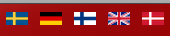
Good luck!
You may also want to read: